FAQs

Lalamove provides on-demand services by connecting driver partners on mobile and web apps. Driver partners and couriers can take orders according to their own schedule.
Download Lalamove's Driver app and press ""Register"" to complete the registration process. Our registration process is simple and can be completed within 2 working days, given you have completed our online quiz and documents are approved.
Account will be verified within 2 working days after the training is completed and the documents are approved.
Any applicant aged below 18 are NOT eligible to be a drivery partner.
Currently, registration is available for bike, motorbike, car, small van (Max 600kg), medium van (Max 900kg), large van (Max 1,100kg). Stay tuned for further updates.
You are not allowed to open one more account in Lalamove with different vehicles. Each driver license can only open one account, and each account can only register one vehicle information.
No, same vehicle plate or vehicle can only apply for one Lalamove account.
For update of Vehicle details, do head to your Driver App > Profile > Settings > View Personal Info > Mobile Number
1) Driving License
2) Right to Work
3) Commercial Insurance
The virtual training is conducted directly through the "Lalamove Driver" app.
If you don’t have a receipt book yet, you can find standard versions at most stationery or office supply stores. We do offer generic receipt books as a courtesy if you'd prefer to pick one up for free.
If you would like to please visit our office:
Address: Floor 0, Here East, Queen Elizabeth Olympic Park, Plexal, London E15 2GW, United Kingdom
Working Times: 10:00-18:00 Mon-Fri
Kindly follow a step-by-step guide to provide your proof of delivery on the Lalamove Application
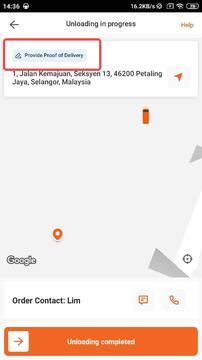
A small pop-up will appear on the top-right corner to indicate that you will need to submit proof of delivery upon order completion
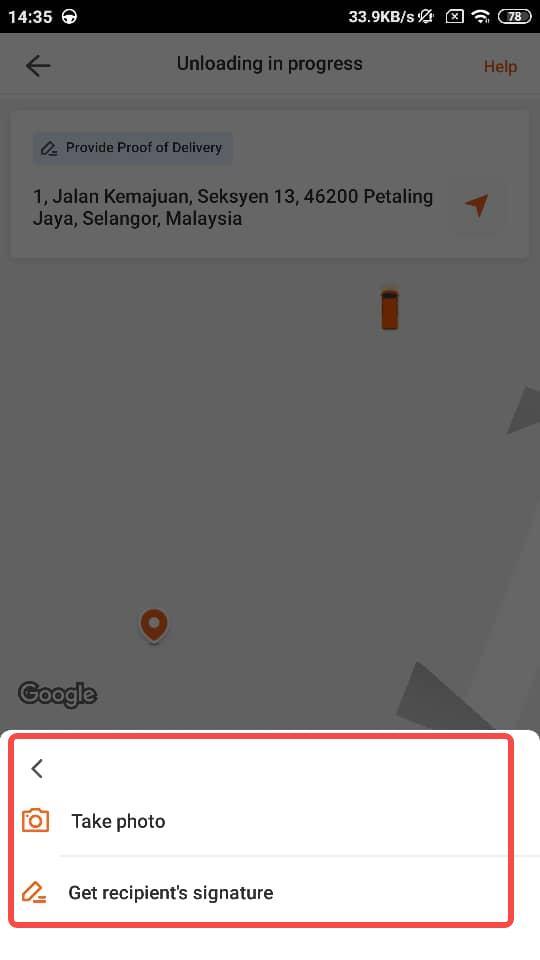
Click either the two options to upload your proof of delivery
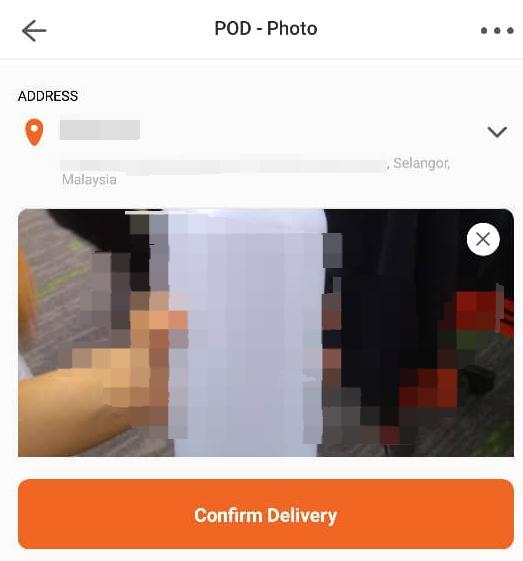
Upload your photo that you have taken from your camera
This document serves as a standard proof of payment for the customer's immediate reference. It is not an invoice.
Customers needing an invoice should contact customer support via the in-app chat or email at info.uk@lalamove.eu
Valid Proof
To be considered as a valid Proof of Delivery, the picture must visibly show:
-
Clear picture of delivered item (s) in a well lit area, during the unloading process
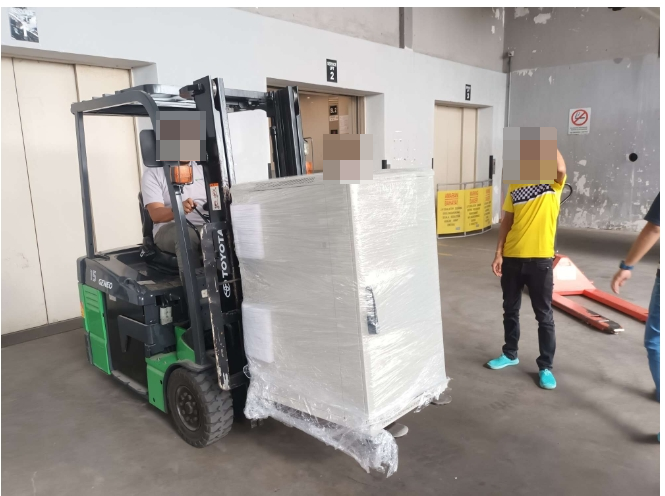
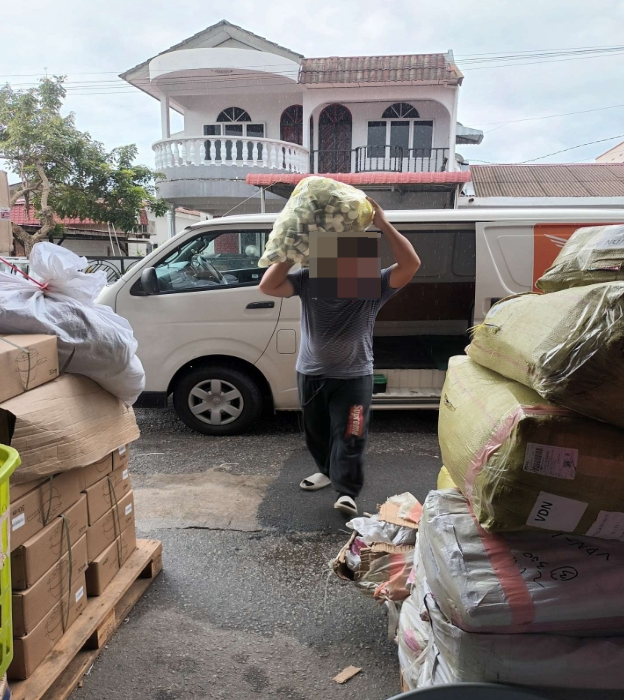
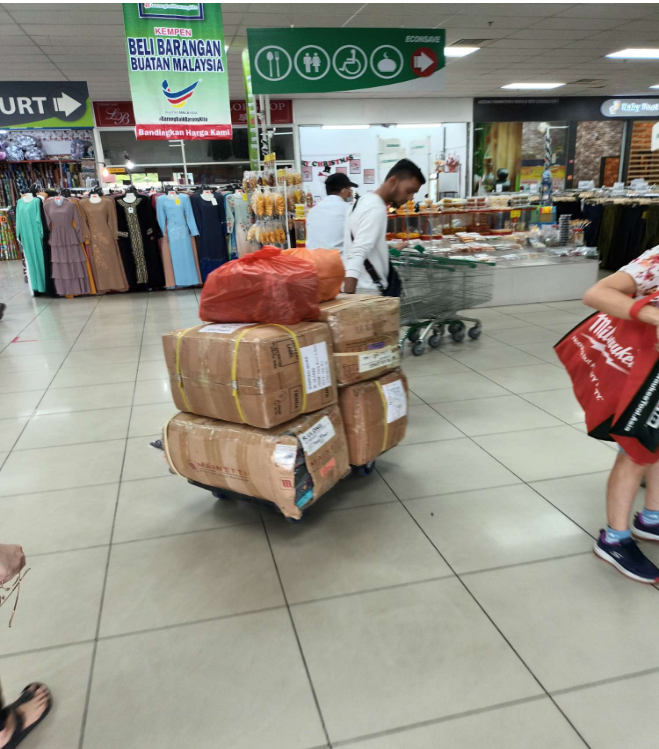
-
Clear picture of the customer’s drop-off location:
-
House number; if not available, then
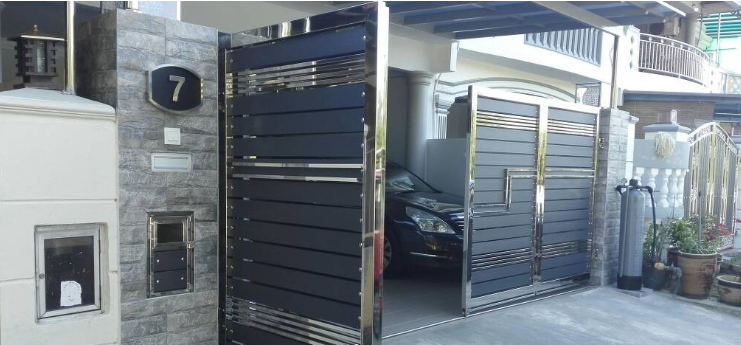
-
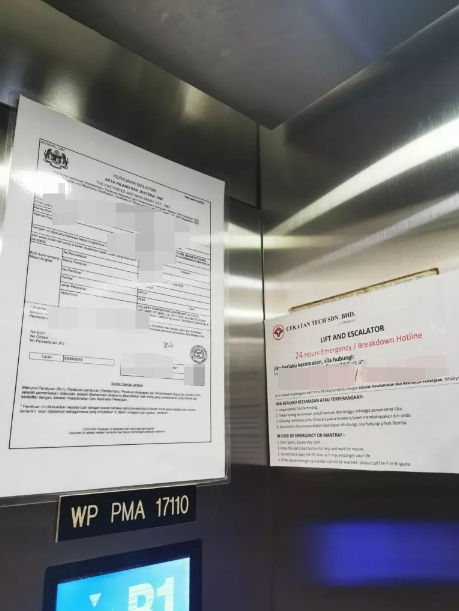
Lift document with address; if not available, then
-
Customer door (residential) or company logo (non-residential)
-
Invalid Proof
-
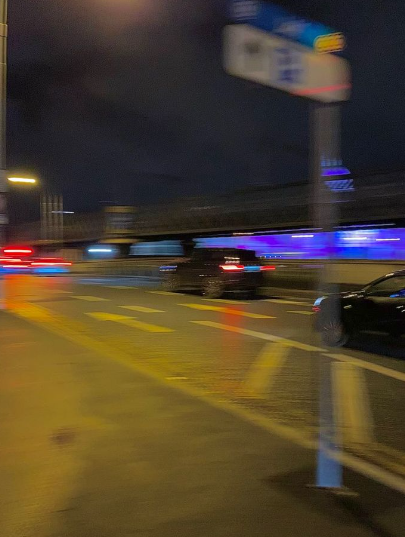
Blurry pictures of location
Example:
-
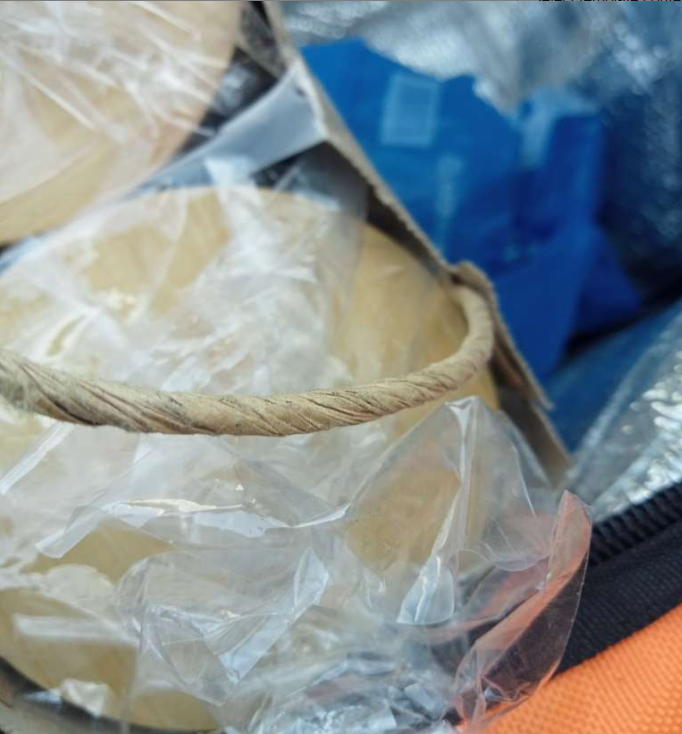
Zoomed in / Unclear Picture of delivered item
Example:
-
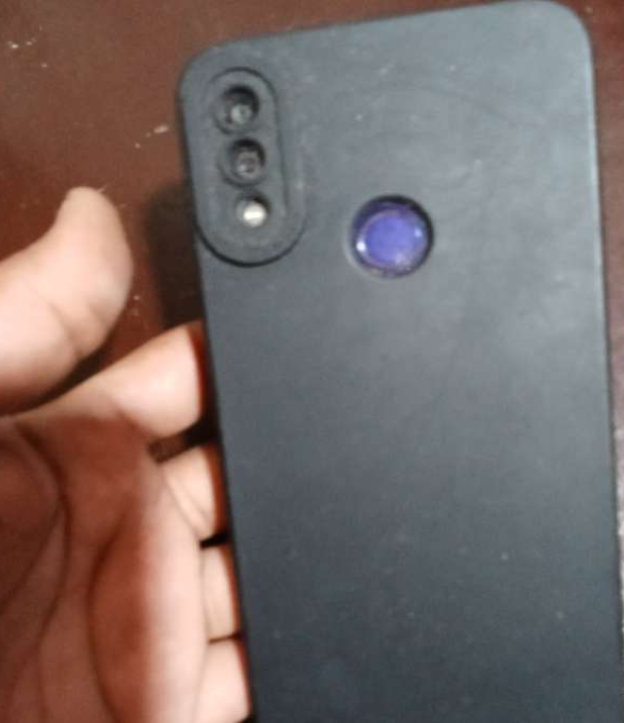
Non-Related Pictures (no sign of actual delivered items)
Example:
-
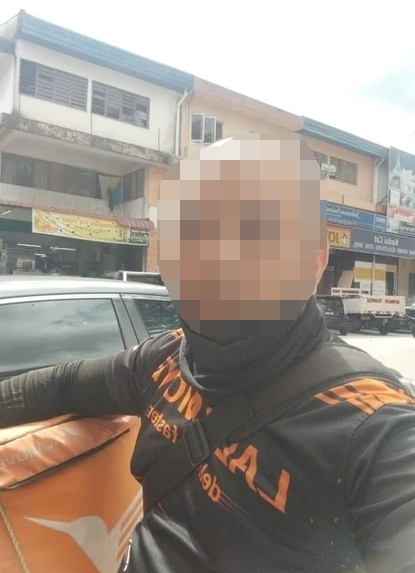
Selfie
Example:
-
Covering the camera / Blank screen
Example:


The driver may choose to upload a legitimate signature from the customer or take Proof Of Delivery pictures.
Yes, a clear picture of delivered item (s) in a well lit area, during the unloading process is required.
An indication of the customer’s drop-off location must ALWAYS be clearly visible:
-
If you are delivering to a residential area, the customer’s flat or unit number should appear in the picture
-
If the flat or unit number is not available, you can take the picture with the lift document containing the building address
-
If the lift document does not contain the building address, you may hold the order and take a picture with the customer’s door in the background
-
If you are delivering to a non-residential area or any building where you cannot go further than the reception, you can take the picture with the identifiable logo (e.g hotel name) in the background
-
Pictures that do not contain any clear indication of the drop-off location might not be accepted as a valid Proof of Delivery
Please abstain from taking any pictures of customers' faces or the interior of their houses.
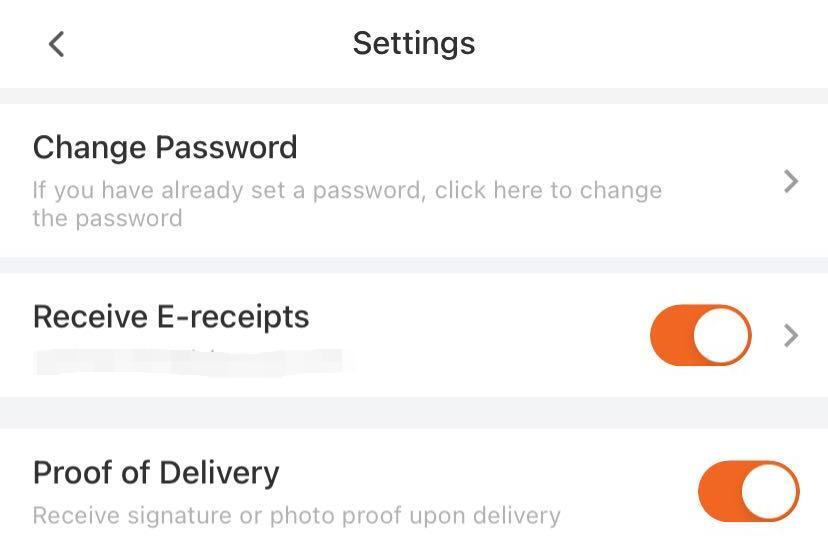
It is probably because the POD feature was not on from the User perspective when placing an order.
For users: Kindly turn on the POD feature in your Settings
To select an order using the Lalamove app:
1. Click the "On Duty" icon to start seeing orders.
2. Pick up an order.
The fare of service is based on multiple factors such as traffic situation, order volume, availability of partners, applicable tolls, surcharges and so on. Hence the total fare of the service may vary. The fare displayed at the time of the request may not be the same if there is a change to order details.
Once you've accepted the order, you’ll be able to see the customer’s address and contact number.
You can view the phone number of the customer by clicking on the phone icon. If you click on the icon, your phone will automatically place a call to the customer. You can also reach out to the customer via chat in the app.
No. Lalamove orders are for transporting goods only. Customers are not permitted to ride along during a delivery.
Try uninstalling and reinstalling the application. Then login into your account as you normally would. If the issue persists, please contact our Customer Service team for assistance.
Click on ”Records” and filter the status of the jobs that you're looking for; i.e. Ongoing, Completed or Cancelled.
Delivery time will follow the order stated on the App. You are required to complete an order depending on your vehicle type.
Please contact our Customer Service team for assistance.
Please contact our Customer Service team for assistance.
Please contact the user via in-app chat. If user is not reachable, please contact our Customer Service team for assistance.
Please contact our Customer Service team for assistance.
If you can't find the pick up/drop off point, please contact the sender/recipient for clarification.
Please contact our Customer Service team for assistance.
As your safety is our priority, if the user being rude or abusive, we suggest you to remain quiet and professional. Please try to avoid engage with them and finish the order accordingly.
However, if the user keep insulting you or being violent and your safety is threatened, please remember your safety comes first.
You can proceed to cancel the order and contact us if you need any assistance. Report to the local authority if necessary.
Please contact our Customer Service team for assistance.
Please encourage the user to cancel the booking and rebook, indicating that the good is too large for this vehicle type as the reason. Please contact our Customer Service team for assistance if necessary.
We take data protection seriously. All driver's personal details are protected in accordance with the General Data Protection Regulation.
Lalamove uses automated systems to manage delivery operations and efficiently match orders. The platform automatically offers orders to eligible delivery partners using a progressive allocation process designed to maximize fulfillment speed while minimizing pickup time.
An order is initially shown to delivery partners who:
-
Have the required vehicle type for the order.
-
Are set to On-duty.
-
Are located within a specific initial radius from the pickup location.
If the order is not accepted or matched within a set period, the platform progressively expands the offer radius across a wider geographic area until a suitable delivery partner is found.
Key operational factors include:
-
Vehicle type required: Matched according to capacity and suitability.
-
Proximity: Your distance to the pickup location.
-
On-duty status: Whether you are active and available in the app.
-
Platform operational conditions: During peak demand or low supply (e.g., insufficient 2-wheeler delivery partners), the system may show orders to 4-wheeler delivery partners to facilitate faster matching.
Delivery fees follow a fixed, predefined pricing structure—we do not use dynamic or surge pricing. The total fee consists of:
-
Base fare: A fixed starting fee based on the selected vehicle type.
-
Distance charge: An additional rate based on total delivery distance. Different per-mile rates apply across distance bands for each vehicle category.
Additional standard fees may apply depending on the order requirements:
-
Loading assistance fee: Charged when the customer requests delivery partner loading or unloading support. Includes a minimum charge plus set increments per time interval.
-
Waiting time fee: Each pickup and drop-off location includes a complimentary waiting allowance. If waiting time exceeds this allowance, additional charges apply per subsequent time interval.
All standard fees are displayed to the customer prior to order confirmation, except for charges incurred during the delivery itself (such as extra waiting time).
We process personal data (as described in our Privacy Notice [hyperlink]), with the support of our systems, to identify and investigate suspected fraud, misuse of the Lalamove platform, and potential breaches of our Terms & Conditions [hyperlink] in an accurate, fair, and efficient way.
Our automated systems analyze account and operational patterns to identify potential violations or safety risks, which may result in temporary account restrictions or security reviews while an investigation is conducted.
In relation to any of the automated (or otherwise) systems described in this FAQ, Delivery Partners can ask for further information about (or if relevant contest) any determination made under any such system. Please do contact dpo.uk@lalamove.eu if you want any further information about this.
If suspicious activity is detected:
-
Manual Review: Relevant order records and Driver ID reports are reviewed by the local compliance team.
-
Temporary Restrictions: Feature access or pending payouts may be temporarily restricted during the investigation.
-
Outcome:
-
If cleared: All temporary restrictions are lifted, withheld payments are released in the applicable payment cycle, and you can resume taking orders.
-
If a breach is confirmed: Lalamove may issue warnings, maintain or extend restrictions, withhold/recover funds where permitted by terms, suspend, or terminate the account.
No. While Lalamove monitors operational and safety data, we do not operate a formal ranking, scoring, or rating system for delivery partners. Order allocation is determined purely by proximity, vehicle suitability, availability, and real-time operational demand.
To automatically receive Statement for each month, kindly activate the Receive monthly statements by email function under your setting page in Notification category on web. Add the recipient email below to receive the statement. You may also download Statement under your setting page in Statement category on web.
Keep track of your delivery expenses: Manage multiple staff members under a single business account with a centralised business wallet. Monitor your corporate accounts spending with ease through monthly statements. Take control of your spending!
Reduce operational costs: without your own fleet of vehicles and team of drivers, you get to save on the vehicle purchasing cost, the vehicle maintenance fees and overheads that come with employing drivers on a full- or part-time basis.
Save even more with multi-stop at up to 20 different locations within one trip!
To update your corporate account information, please reach out to your Sales Representative.
Users with Admin role in the corporate account can invite a new or existing user to join your business account via Email. Kindly tap the button Invite new member under setting page in Team category on web, enter the email address of the new teammate. New teammate will be added to your corporate account after he/she finish the steps in the invitation email.
Users with Admin or Manager role can view all order history on the corporate account. Users with Employee role can only view orders placed by him/her. You can view the role of all teammates under setting page in Team category on web.
Lalamove operates 24/7. Our delivery partners pick up within London.
1 - Input the address for pick up and drop off
You may choose to make it as an immediate order or a scheduled order based on your needs
- Immediate order: Driver will pick up the delivery as soon as possible
- Scheduled order: You may select pick up time based on your preferred schedule up to 30 days
If you need to add multiple stops, simply click on the "+ Add Stop" button to add a stop. You may add up to 20 stops within the same order
2 - Select the vehicle type
Evaluate the size of your delivery, and select the vehicle type your want.
If you are unsure of the capacity of each vehicle type, click on the information button on the top right corner for the details
3 - Select any additional service
You may also request for add-on services (such as adding Loading/Unloading Service) based on your needs
4 - Add in any reference and confirm the booking
If there are any reference information you may want to provide to the driver, you may add it in the next page! Confirm the contact information and select your payment method. If you have a coupon and discount code, you may also add it there.
Once everything is good to go, just click on "Place order" and we will match you with a driver
Mobile APP
To schedule an order, simply click on the "Pick-up time" on the order placing page and select "Later". You will then be able to select the pick up time based on your preferred schedule up to 30 days
Web
To schedule an order, simply click on the “Scheduled" button after inputting the order details. You will then be able to select the pick up time based on your preferred schedule up to 30 days
Simply click on the "+ Add Stop" button to add additional dropoff locations. You may add up to 20 locations in one order.
You may also drag and rearrange the sequence of the dropoff locations based on your needs!
Once you are matched with a driver, you will be able to see the details of the driver. Your driver will also contact you via phone call to confirm the confirmation. Should you want to reach out to the driver again, you may also contact them via the app in the order details.
Mobile APP
Underneath the driver details you may click on the "Chat" or "Call" button to use the in-app chat to chat with the driver or call the driver directly.
Web
You may chat with the driver directly. You may also refer to the driver's phone number listed in the Order Details panel and contact the driver via your phone.
Same as how to contact my driver.
Once an order has been successfully matched, you will be able to see an estimated arrival time on the map. Once the driver has picked up your delivery, the time listed will be the estimated arrival time to the drop off location.
Please note that the time listed is only for reference and may be changed due to unforeseeable reasons such as traffic and weather issues.
You will be able to check the location of the driver via the order page. You may see where your driver is in real time and get notified instantly when the delivery has been completed.
You can even send the tracking information to your customer by clicking the share button on the order page, so they know the delivery status and the estimated time of arrival.
Each status shows the status fo the delivery at real time. Some of the statues that may appear on your order are:
On the mobile app
Finding a driver --> We are currently matching a driver for your order
Awaiting Driver --> Your order has been matched with a driver and the driver is heading to pick up point
In transit --> The driver has arrived at the pick up point
Delivering --> The driver has arrived at the drop off point
Confirming Bill --> Driver has finished unloading and is confirming the final bill
Settle Bill --> The driver has sent the final bill
Completed --> The delivery has been completed and payment has been settled
Cancelled --> Your order is cancelled
On the web app
Matching --> We are currently matching a driver for your order
Ongoing --> Your order has been matched with a driver and the driver is heading to pick up point
Picked up --> The driver has picked up the item and is heading to the drop off point
Confirming Bill --> Driver has finished unloading and is confirming the final bill
Settle Bill --> The driver has sent the final bill and is pending the payment from customer
Completed --> The delivery has been completed and payment has been settled
Cancelled --> Your order is cancelled
You may share the order with the recipient at the order page.
Mobile App
Simply click on the "Share" button on the order page and the recipient may receive real time tracking of the delivery.
Web
Simply click on the "Track Order" button on the order page and the recipient may receive real time tracking of the delivery.
Simply go on to "Settings" and enable the "Enable digital signature" button. Once enabled, the delivery would require the recipient to sign after receipt
There is no maximum number of orders per day! You may place as many orders as you want everyday!
If you would like to check on the photos uploaded by the driver, click on the order details page on the app or the order details panel on the website. You will be able to see picture uploaded under the Drop Off location.
To edit an order, click the icon at the top right corner of the order page and select 'Edit order' from the menu on the app, or the edit icon under the route section on the web.
You may edit the drop off location, recipient details, and notes to driver. Price changes will be subject to location updates. Please note that you are only allowed to edit once
To change the driver, you may simply click on the icon on the top right corner of the order page on the app or under the driver card in the web, and click "Find a new driver". Once unassigned, your order will be made available for other drivers to deliver.
Please note that you are only able to unassign the driver once for each order.
For orders that are not yet matched with a driver, you will be able to cancel the order anytime by clicking "Cancel Order" on the order page via the button on the top right corner in the app (bottom right corner for website).
For immediate orders that have been matched with a driver, you may cancel your order up to 15 minutes since the matched.
For scheduled orders, you may cancel up to 45 minutes before the scheduled pick up time after it has been matched.
If you wish to cancel the order after the 15 minute period, please contact our Customer Service Team to do so. Please note that cancellation fees may be applied after this timeframe.
You can only cancel your order within the grace period. If you wish to cancel your order after that, please contact our Customer Service Team for assistance. Please note that cancellation fees may be applied.
Grace period:
Immediate Orders: 15 minutes after matched with a driver.
Scheduled Orders: 45 minutes before scheduled pickup time.
You can only edit your order before the driver has arrived at the pick up location. If you wish to edit your order after that, please contact our Customer Service Team for assistance.
When selecting your vehicle, you will be able to see the additional services you can request and the cost associated next to it.
Here you can find the pricing information including the additional service fee:
https://www.lalamove.eu/en-de/all-vehicle-pricing-detail
In the app, you have the following options to choose from:
Loading/ unloading by driver – €30,00 - €90,00
(Loading/ unloading of items over 30 kg by driver)
Loading/ unloading by driver + helper – €60,00 - €180,00
(Loading/ unloading of items over 30 kg by driver and helper)
Each order is calculated based on your requirements for that order, such as the vehicle type, add-on services, and also the distance between your pick-up and drop-off locations.
We currently only accept cash, so please pay the driver the exact cash amount.
Cashless payment options will be coming soon, so stay tuned!
You will be able to select your payment method at the payment page when placing the order. Simply select the payment method you would want to pay with. You can change the method for each order based on your preference!
Activate the "Receive E-receipts" function under your setting page in order to get the e-receipts for each order. Kindly input in your email address to opt in to get the e-receipts.
To obtain e-receipts of specific orders, click "Get Receipt" at the bottom of the order details page. You can choose to resend receipt, or download PDF.
To obtain e-receipts of specific orders, click "Get Receipt" at the bottom of the order details page. You can choose to resend receipt, or download PDF.
Should you still be unable to receive the receipt, you may contact our Customer Service Team for further assistance.
To request an invoice, please send an email with the required information to info.uk@lalamove.eu.
You must include:
- Full name and address or business placing the order.
- VAT ID if applicable.
- Contact details for communication (e.g., email address).
No, this is a temporary solution that involves manual processing. We plan to implement a more automated and streamlined invoicing system in the near future.
You may add a coupon at the payment page by entering the coupon code at the "Add coupon" section. Once the coupon has been applied, the relevant amount will be discounted from your order.
Alternatively, you may also add a coupon for future use by going to the "Wallet" page, click "Coupons" and add your coupon there. You may also view all your coupons on this page
We are sorry that we may not be able to find you a driver at the soonest, it could be due to no driver available around your area or all drivers are busy with their orders.
Try adding in priority fee to encourage drivers to pick up your order earlier.
If you are unable to find your address while searching for it, you may click on the "Wrong or missing location?" button to report on the missing location. Our team will review and make take the necessary actions to fix this.
If you face any unforeseen issues with the ongoing delivery and unable to settle with the driver, please talk to our Customer Service Team.
If your order is still not completed, please contact the driver first and ask for an update on the delivery status. If you are unable to contact the driver or there are other issues, you may contact our Customer Service Team.
We are sorry that your experience on our platform was not up to your expectation. Please contact our Customer Service Team for further assistance.
Drivers may deviate from the suggested route if there are unforeseen traffic situations. If you suspect that the driver is not heading towards the drop off point, please contact the driver to reconfirm. Should you require further assistance, please reach out to your Customer Service Team.
You may contact the driver via the in-app feature or by a phone call.
If your driver is unresponsive and you would want to change the driver, you may simply click on the icon on the top right corner of the order page and click "Find a new driver". Once unassigned, your order will be made available for other drivers to deliver.
If there are other matters you will need to contact the driver but unreachable, please contact our Customer Service Team for further assistance.
The charge noted in the bill of the order page shall be the charge to be paid. If there are any additional charges that were not agreed by both parties, please contact our Customer Service Team for further assistance.
Driver usually contacts recipient upon arrival to confirm drop-off, please pay attention to calls when driver is near.
If the driver is unable to drop-off, please contact driver to provide next steps. Should you need additional assistance, please contact our customer service team.
If you have forgotten your password, simply click on the "Forgot password" button and input your phone number on your registered account. We will then send you a SMS or a call for your to verify and update your password
To change your password, go to Settings and click change password. Follow the steps according to the prompts.
To update your phone number, click on your profile picture at the top left. Under your profile setting, you will be able to change your phone number after verification.
For Android, you may turn on/off in the device settings page
For iOS, you may turn on/off in App settings page
However, we high recommend that you keep the notification open to not miss out any updates on the orders or any promotions we may have
To sign up an account, simply click on the "Don't have an account?" button at the sign in page and you may regsiter an account with your mobile.
Alternatively, you may also register an account with your Facebook, Google or Apple acocunt by simplying clicking to the icon on the login page. You will then be directed to the registration procedure
Kindly reach out to our Live Chat agent for further assistance
Unfortunately, we do not deliver passengers or pets. We do not deliver chemicals, unsecured flammable objects or items which could endanger the safety and well-being of our driver-partners. Please get in touch with us should you have any queries on whether the items you wish to deliver are allowed.
Other than that, we deliver almost everything else!
No. Transporting people or pets is not permitted.
The size limit varies depending on the vehicle type you chose!
Please refer to the link for the size and weight limitation.
Where potentially suspicious activity is detected, Lalamove may:
-
Conduct an internal manual review of order and account activity.
-
Temporarily restrict certain features (e.g., placing new orders) or suspend the account.
-
Send an SMS and push notification informing you that your account is under review.
During the review, you can contact support via in-app chat to check status or provide information. If no breach of Terms is found, full access will be restored immediately.